Microsoft Azure SQL
Microsoft Azure SQL
Connecting to the database
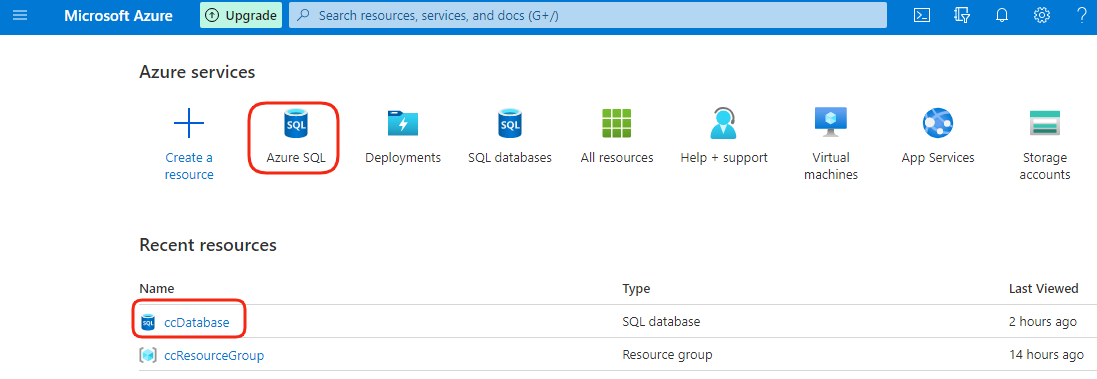
From the Microsoft Azure portal (https://portal.azure.com/), we have access to the list of available databases:
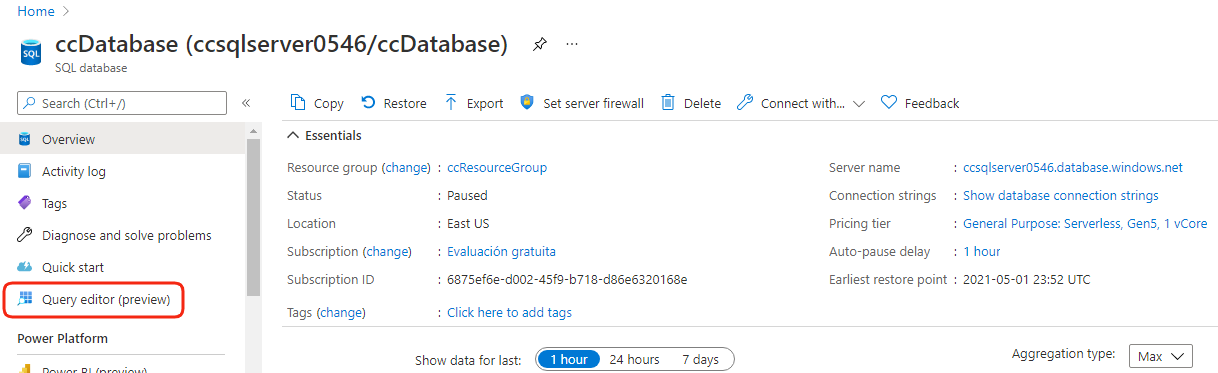
Clicking on the database name (in this case, ccDatabase), we can see the general database information (at the center of the page) and a menu on the left, from where we can access the Query editor:
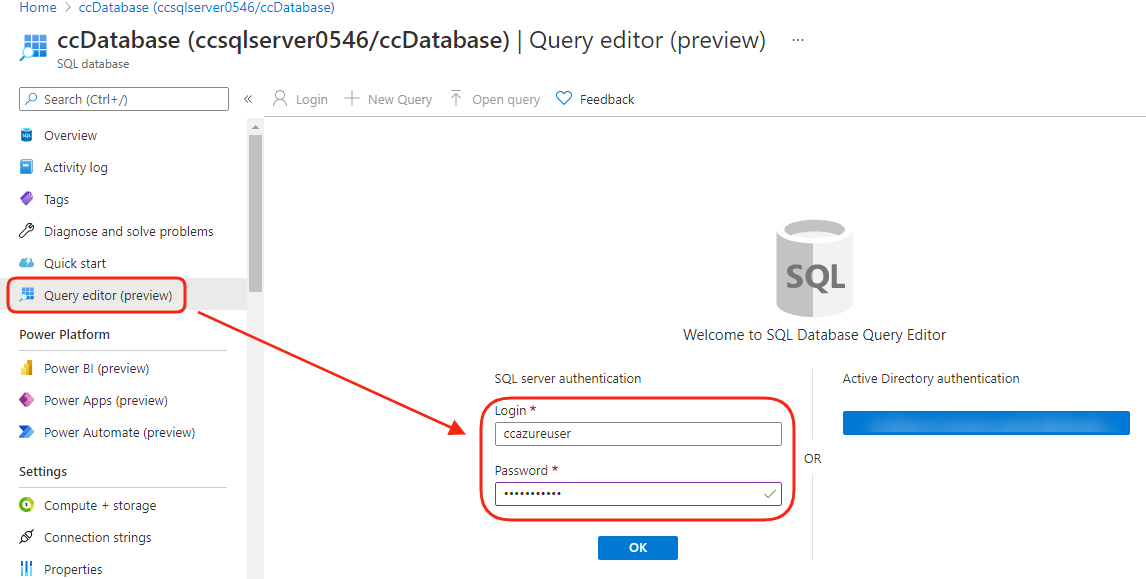
Accessing the database requires providing access credentials, even having previously logged into the portal.
After clicking on the Query editor option (in the menu on the left), we need to enter the login data and the password to access the database. Then we click on the Ok blue button:
Creating the survey table
To create the table to store the survey data copy and paste the following SQL code into the Query editor:
CREATE TABLE Survey {
   QuestionID1 varchar(255),
   Answer1 varchar(255),
   QuestionID2 varchar(255),
   Answer2 varchar(255),
   QuestionID3 varchar(255),
   Answer3 varchar(255)
};
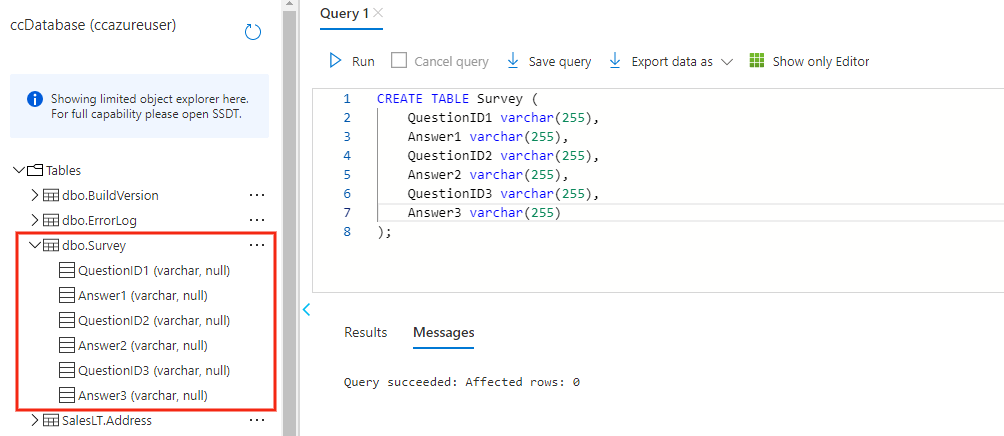
Click the Run button to create
the new table into the database. The table and the fields are visible on the
left: